Create your first survey
Use Studio to write questions, test the participant experience, and publish a link that you can share.
Build a short feedback survey
- Open Studio and choose New survey.
- In Details, enter a Title, such as
Workshop feedback. You can also add a Description. - Open Content. Add a page and name it
Feedback. - On that page, choose Add question. Select Single choice, write
How useful was the workshop?, and add the optionsVery useful,Somewhat useful, andNot useful. - Add a Text question:
What would you change?Open its Settings · validation, privacy & order and enable Allow multi-line answers. - Open Flow. Adding the page also creates Start and End and places
Feedbackbetween them automatically. Check the order: Start → Feedback → End. - Open Preview, answer both questions, and continue to the completion message.
- Follow Publish and share when you are ready to collect responses.
Valid edits save automatically. If a field reports an error or an unsaved change, resolve it before closing or reloading the editor.
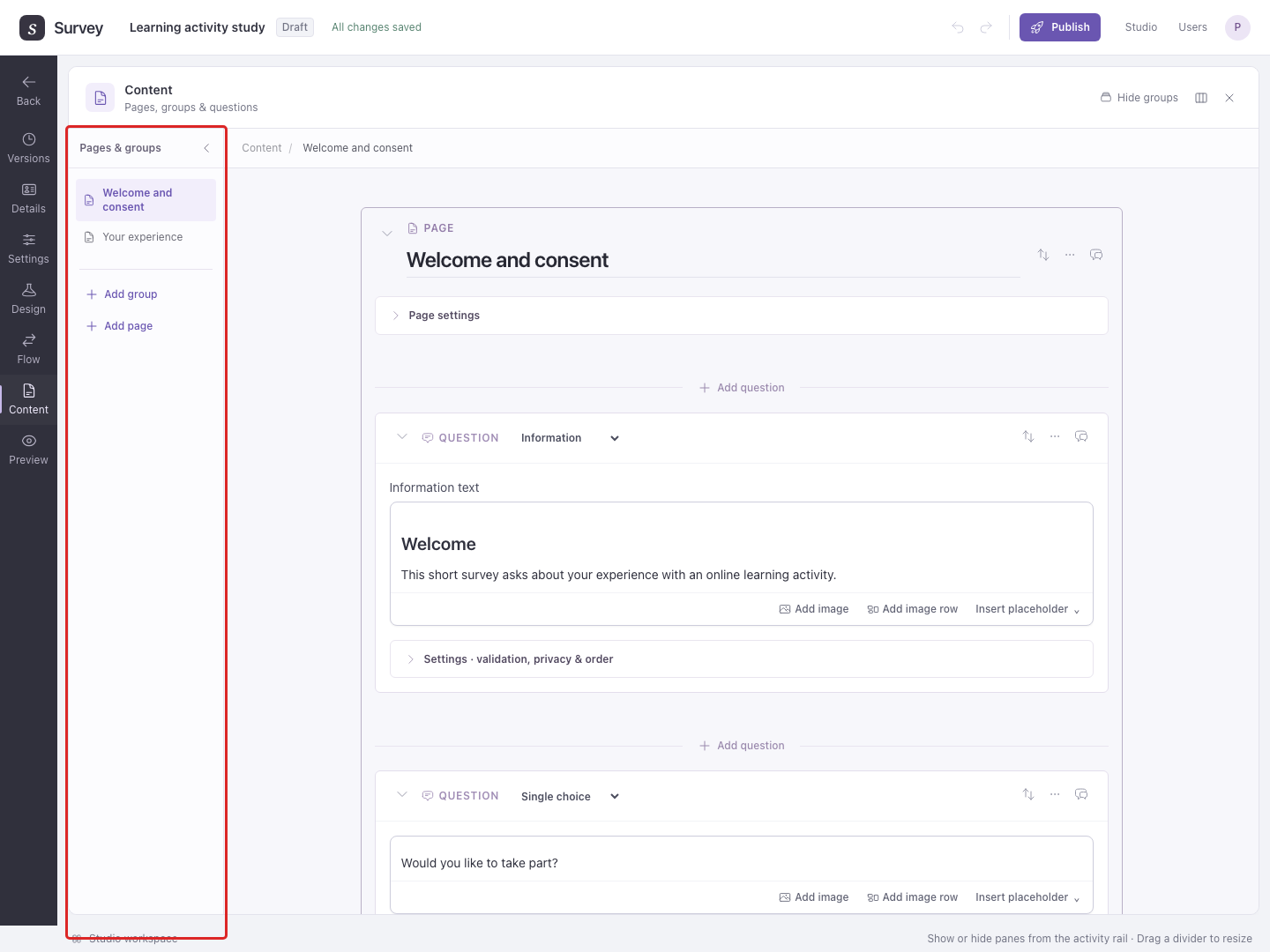
Find your way around
| Area | Use it to |
|---|---|
| Details | Name the survey and write its description. |
| Content | Create pages, groups, and questions. |
| Flow | Decide the order and which paths participants follow. |
| Design | Set up experimental conditions and measurements. |
| Preview | Try the survey before sharing it. |
| Settings | Configure access, participant behavior, and retention. |
| Versions | Work with drafts and published releases. |
This quick start begins with Content for a short survey. For an experiment, we recommend design → logic → content: define variables and assignments first, arrange the route using initially empty groups and pages, then write the participant content. You can switch between these steps whenever needed.