Administer users and access
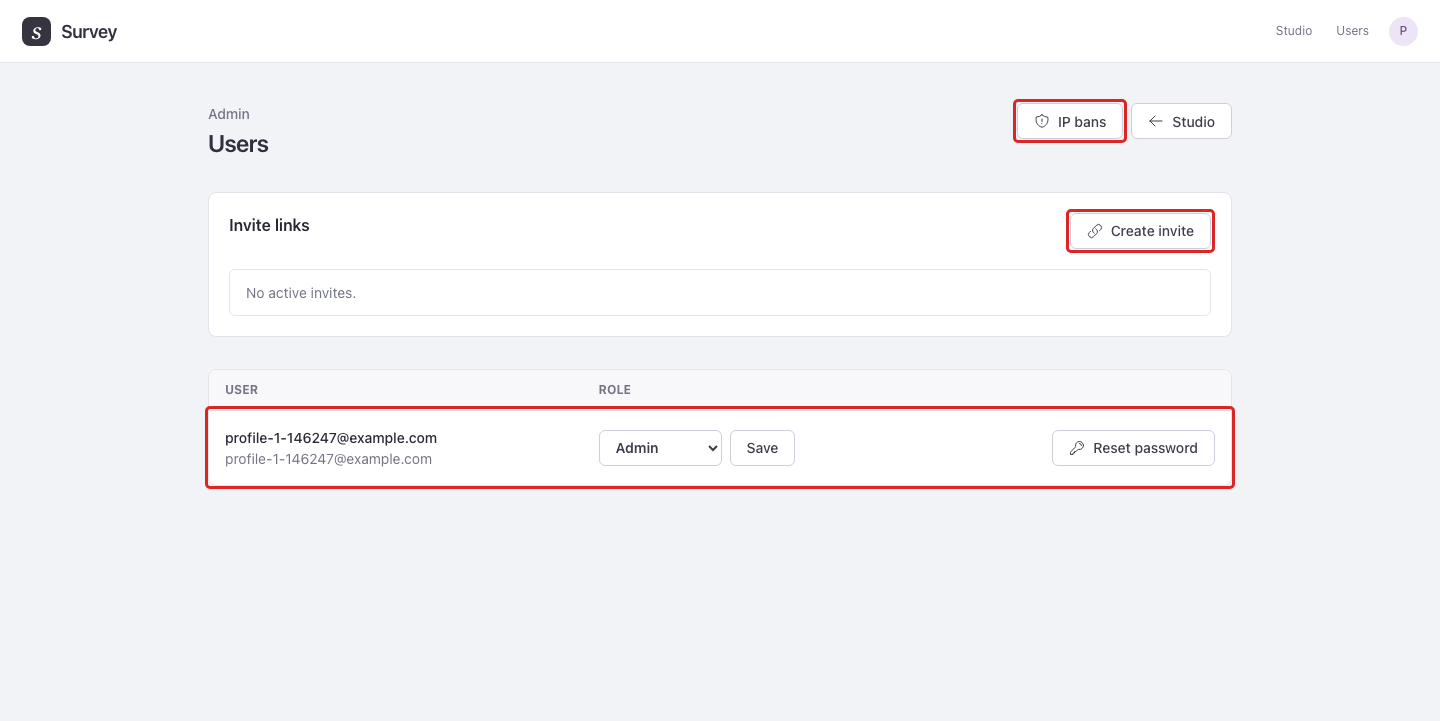
These tools are available to administrators. Open Users at /admin/users to manage Studio accounts. Project owners manage survey collaborators separately.
Invite or help a user
- Select Create invite, then share the Latest invite link with the intended person. An invite remains valid until Revoke is used.
- Select a user's Admin or Researcher role and choose Save. Researchers work with projects they own or collaborate on. Admins can also administer accounts and use View as to open another user's Studio.
- Select Reset password to generate a Latest password reset link for that user.
- Select View as to inspect the application using another user's access. Return to Survey Studio and select Stop in the “Viewing as” banner when finished.
Example: To help someone who cannot open a project, use View as to check what their account can access, then return to your own account before making administrative changes.
Manage IP bans
Select IP bans to review blocked IP addresses and their expiry times. To add one, enter its IP address, Reason, and Banned until, then select Create ban. Method and Path record the request associated with the ban.
Use Save beside an existing entry to change its details or expiry. Remove removes that ban. An address can represent several people on the same network, so check it before blocking it.