View and export results
Results belong to one published version. In Versions, select that version and open Results.
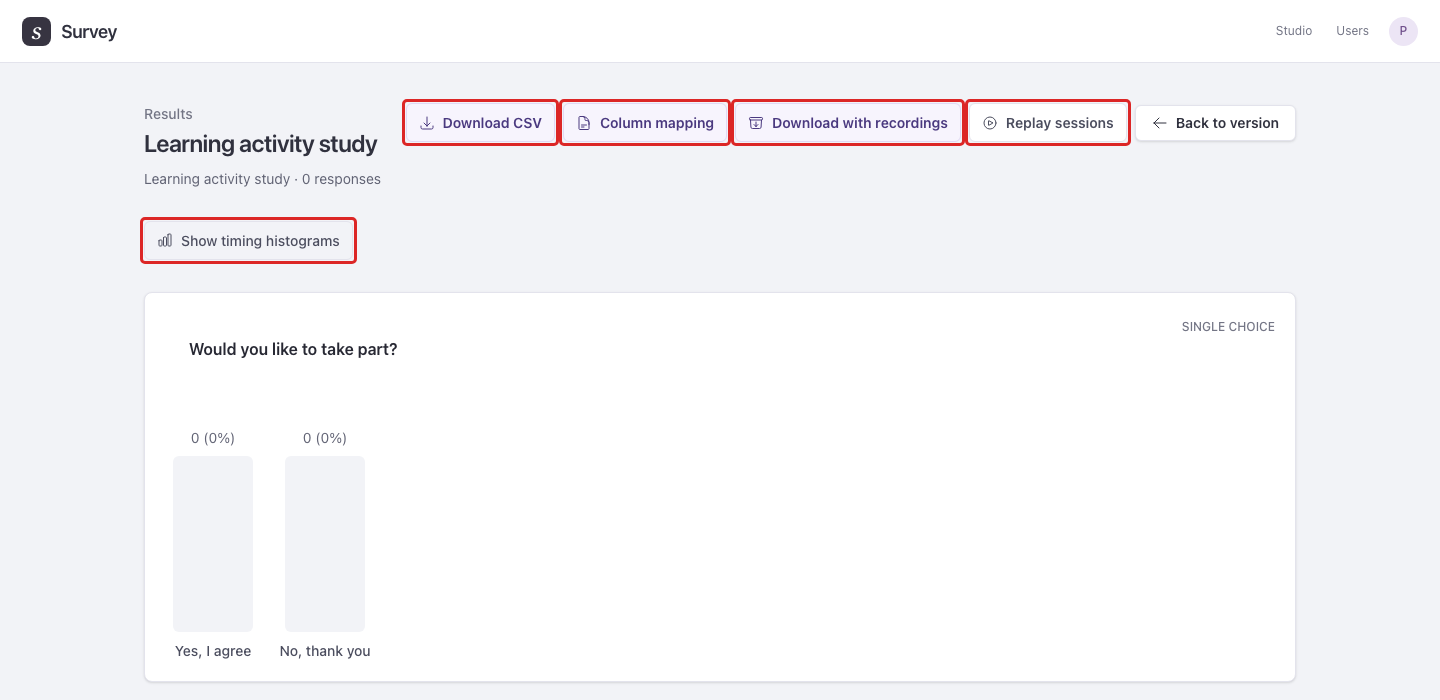
Download responses
- Download CSV exports completed responses for analysis in a spreadsheet or statistics tool.
- Column mapping downloads a JSON file that identifies the exported columns. Keep it with the CSV when labels may change or repeat.
- Show timing histograms displays the available question timing distributions.
- Download with recordings exports a ZIP containing the CSV, column mapping, session recordings, and a README explaining the files.
The on-screen Export preview lets you inspect the data before downloading. To compare publications, download each version's results separately.
Example: After a pilot, export its CSV and column mapping before creating the main-study version. This keeps the pilot data distinguishable from later responses.
Read exported values
| Question type | CSV cell |
|---|---|
| Single choice | The selected option's label, such as Yes, rather than its ID. |
| Multiple choice | Selected option labels joined with commas, such as News, Weather, in one question column. |
| Text | The answer text, including line breaks. |
CSV quoting preserves commas, quotes, and line breaks inside a cell. Text that could be treated as a spreadsheet formula receives a leading apostrophe. Unanswered, skipped, and PII-deleted question answers are blank; their columns remain. A blank alone does not tell you which of those cases occurred.
A declared Flow variable named score has a column headed Variable · score. An unset value is blank. Design measurement links describe the source columns; they do not add a calculated outcome column or change the source answers. Use Column mapping to identify the linked sources.
When IP address collection is enabled for the version, an IP address column contains the saved participant address. Protect this identifying data when sharing exports.
For a survey with a single question headed “Consent?” and a numeric score variable, these selected CSV columns could look like this:
| Response | Consent? | Variable · score |
|---|---|---|
| 1 | Yes | 7 |
| 2 | No |
The Column mapping file's columns array identifies those question and variable columns, for example:
[
  {"ordinal": 3, "id": "consent", "header": "Consent?"},
  {"ordinal": 4, "id": "flow_variable:score", "header": "Variable · score"}
]
This excerpt assumes the question ID is consent and there are no URL parameters or other questions. The full CSV also includes Submitted at and other data columns. ordinal counts columns from 1. Use the mapping for your own export rather than assuming a fixed position.
Every published End step saves a completed response. For consent or eligibility branches, identify the relevant answer column and filter its values in your analysis; the response count includes those early endings.
Check the study design in a pilot export
For the browser-extension example, submit a small set of test responses to a published pilot version. Use a fresh browser context for each new response, such as closing all private windows and opening a new private window; reloading an existing session keeps its assignment. Use Export preview, Download CSV, and Column mapping to check:
- Each completed evaluation has one installation answer for Broad (adblock) and one for Simple (pomodoro timer). Repeated question column labels include their Loop context; use the mapping to distinguish the source question and iteration.
- Priming — value identifies the response's between-participant level. The corresponding key column preserves its level identifier.
- Permission — order lists the assigned extension order using the Permission level titles. See Loop answers and order for the column format.
- Separate before/after source questions remain separate answer columns, even when their wording is linked. Linking them to one measured variable does not automatically calculate a change score.
A consent-decline response ends before assignment, so its study assignment and evaluation cells are blank. Preview is useful for checking routing and wording but does not create these saved responses.
Read Loop answers and order
A Loop adds a separate answer column for each item, while the CSV still has one row per completed response. The heading uses the question prompt followed by the item key. For example, a question whose prompt is Rating produces Rating [tea] and Rating [coffee]. The display label Tea is not repeated beside the key tea.
Nested Loops include item keys from the outermost to the innermost Loop. These selected columns show a product Loop containing a temperature Loop:
| Response | Rating [tea / hot] | Rating [tea / cold] | Rating [coffee / hot] | Rating [coffee / cold] |
|---|---|---|---|---|
| 1 | 4 | 3 | 5 | 2 |
Column position does not tell you which item came first. Each Loop has an order column containing its assigned item order, with keys separated by commas. An inner Loop has a separate order column for each outer item:
| Response | Loop — order | Loop [tea] — order | Loop [coffee] — order |
|---|---|---|---|
| 1 | coffee,tea | hot,cold | cold,hot |
The assigned sequence here is coffee/cold, coffee/hot, tea/hot, then tea/cold. If the participant finishes early, an assigned order can include items they never saw. A Loop they did not reach has a blank order cell. An answer cell is blank when that combination has no answer; the cell alone does not distinguish unanswered, skipped, and not reached.
Timing headings use the Question ID and the same item keys, for example rating [tea / hot] — First interaction (s).
The keys match those used in JavaScript reads: authored item keys, repeat numbers, or study level titles. A study factor Loop uses the factor's title in its order heading, such as Product — order. Keep Column mapping with the CSV to distinguish repeated headings. If a key itself contains a comma or quote, the order list quotes it using CSV quoting rules.
A Flow variable updated on every repetition has one column containing its final value. It does not produce a separate value per item.
Interpret question timing
| Measure | Meaning |
|---|---|
| First interaction (s) | Seconds from the page's original load to the first recorded interaction with the question. |
| Last interaction (s) | Seconds from that original load to the most recent interaction. |
| Characters per minute | Final text length divided by the first-to-last interaction interval, multiplied by 60. Available for text answers when the interval is positive and the answer is nonempty. |
| Interaction duration in timing charts | Last interaction minus first interaction. It is a chart measure rather than a separate export metric. |
Focus, keyboard, click, input, change, and clipboard events can count as interactions. These measures do not directly measure reading time. Going Back saves the current answers and timing; revisiting a page keeps its original first interaction and updates the last, so the interval includes time between visits. Clipboard metrics also indicate whether question or answer text was copied or pasted, with event times where supported.
Replay participant sessions
Select Replay sessions, then Replay beside a session. Use play/pause, the time slider, and Speed to inspect how someone moved through the survey. If you already have an ID, use Open a recording by ID.
A replay reconstructs the recorded survey page and interactions; it is not a video. Page appearance can differ if an image, font, or other resource is unavailable. Sessions may be incomplete and do not necessarily correspond to submitted responses. Capture errors are shown in the session list.
When enabled, recordings start when a participant session opens, including before an in-survey consent question. They contain only the replay categories enabled for that published version, and can include typed answers and personal information. Browser scanner results can be collected without replay events; those sessions have scanner results without an interaction replay. Give exported files the same protection as the responses themselves. In a ZIP, use a recording's response_row to find its CSV row within that export, or response_id to match the same completed response across exports. Incomplete sessions have neither association.
See privacy and retention before collecting or exporting identifying data.