Read and write variables
Use variables to read values already available to the participant: Flow results, declared URL parameters, study assignments, and study fields. In a JavaScript Flow calculation, use answers to read earlier question answers.
Start with the two calculation examples if you have not added a JavaScript step yet.
Read by name
| Call | What it does |
|---|---|
variables.get("score") |
Reads a declared value. Returns null if the value is not available yet. |
variables.getRaw("token") |
Reads a declared URL parameter exactly as supplied, without its configured default. Returns null when it was not supplied. Only URL parameters support this call. |
variables.getAll() |
Returns an object containing every available name and its value, including unset values and the browser scanner result. |
const supplied = variables.getRaw("participant_code");
const effective = variables.get("participant_code");
return supplied === null ? "default: " + effective : supplied;
For this example, declare a URL parameter named participant_code with default anonymous. Choose Text for the calculation result. Without a supplied URL value, the result is default: anonymous.
Names are case-sensitive. Study variable names use lowercase words separated by underscores: Priming becomes priming. Study fields include their controlling variable's name: Extension name controlled by Permission becomes permission.extension_name. URL parameters must be declared in the survey.
An unknown name throws an error; it does not return null. If two sources use the same name, reading it also throws an error. Give URL parameters, study values, and Flow values distinct names. getAll() fails if any name is ambiguous.
Values returned by getters are copies. In Flow calculations, they are also read-only. Save a changed value explicitly rather than editing the returned object.
Save a typed Flow value
Usually, return saves a calculation’s result. You can also call:
variables.set("score", 12);
In a Flow calculation, the name must be a Flow variable declared in the survey, for example by a Set variable step or a named JavaScript calculation. It can be declared in another step. The value must match its declared type. A named calculation must also return its own result; that return is another write to its named output. Leave Save result as empty to ignore the return value and save every Flow output explicitly with variables.set. An unnamed calculation does not declare an output of its own.
In a question script, the Flow variable must already be declared in the survey, for example with a Set variable step. Wait for the save:
async function onUnload(question, variables) {
  await variables.set("score", 12);
}
Question scripts read the updated value after an awaited save. Flow calculations keep reading the values from when the node started, even after set or await. Put dependent calculations in separate steps.
URL parameters, study assignments, study fields, and the built-in browser scanner value are read-only. Attempts to overwrite them fail.
Read a question answer in Flow
const answer = answers.get("entered_number");
if (answer.status !== "answered") return "No answer";
return answer.value;
Use this with a Text result and a text question whose Question ID is entered_number:
- In survey Settings, enable Show IDs.
- Open the question in Content.
- Set its Question ID to
entered_number, or use its existing ID in your code.
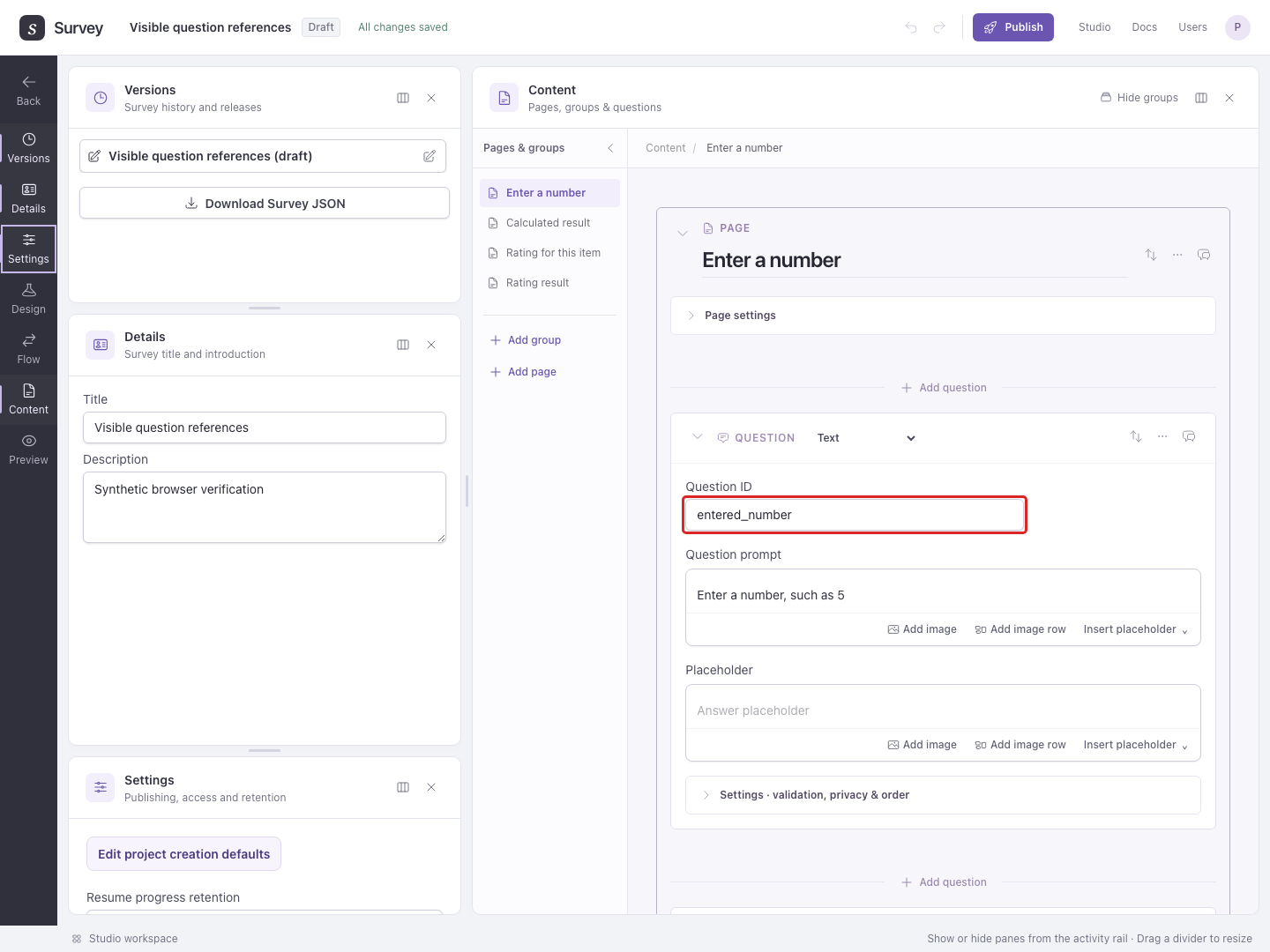
Question IDs are case-sensitive and must be unique within the survey. Use the same ID in answers.get. If you rename a Question ID, update JavaScript that reads it. Downloading and importing a project preserves these references.
answers.get("entered_number") returns:
{
  status: "answered", // or "empty" or "unavailable"
  type: {id: "text", schemaVersion: 1},
  value: "The participant's answer"
}
- answered: a value was supplied.
- empty: the question was reached but left unanswered;
valueisnull. - unavailable: no answer is available at this point in Flow;
valueisnull.
The answer format depends on the question:
| Question | value when answered |
|---|---|
| Text | A string. |
| Single choice | {publicId: "yes"}, where yes is the chosen option’s ID. |
| Multiple choice | An array of these objects, one per chosen option. |
For a Single choice question, set Question ID to consent. With Show IDs enabled, set the Yes option’s ID to yes. Check the selected option with:
const answer = answers.get("consent");
return answer.status === "answered" && answer.value.publicId === "yes";
Choose a Yes / no result for this example. Unknown Question IDs throw an error. answers is available in Flow calculations, not question scripts.
Example: calculate from a participant’s answer
- In Content, add a Text question on a page:
Enter a number, such as 5. Leave Required off so you can test an unanswered question. - Enable survey Settings → Show IDs, then set this question’s Question ID to
entered_numberin Content. - In Flow, add a JavaScript step after that page. Save the result as
doubled_answer, with Result contains set to Text. - Paste the following code:
const answer = answers.get("entered_number");
if (answer.status !== "answered") return "No number provided";
const number = Number(answer.value);
return Number.isFinite(number) ? String(number * 2) : "No numeric answer";
Number(...) converts the text answer into a number for multiplication. String(...) converts the calculated result back into the Text result selected here. Missing and nonnumeric answers get an explanatory label.
- Add a later page with an Information element. In Information text, type
Doubled:, choose Insert placeholder, and selectdoubled_answer. Place that page after the JavaScript step in Flow. - Open Preview, enter
5, and continue. The later page should display Doubled: 10. Try skipping the answer and entering a word to check the other outcomes.
Read repeated answers
For this example, create a Text question, enable survey Settings → Show IDs, and set its Question ID to rating. Put its page inside an authored-list Loop with items tea | Tea, coffee | Coffee, and water | Water.
Inside that Loop, answers.get("rating") reads the current item's answer. Place the JavaScript step after the rating page to read the completed answer. It returns the same answer object shown above, with status, type, and value.
Outside the Loop, the call returns an object containing each item's value:
const ratings = answers.get("rating");
// {tea: "4", coffee: "2", water: null}
if (ratings.tea === null || ratings.coffee === null) return "Missing rating";
return String(Number(ratings.tea) + Number(ratings.coffee));
Place this calculation after the Loop and choose a Text result. Here, rating is a Text question containing numeric answers, so the code converts its strings to numbers, adds them, and returns the total as text. An unanswered or not-yet-reached item has value null. Checking for null avoids treating a missing rating as zero.
The object keys identify Loop items:
- Authored finite list: the key before
|, such asteaintea | Tea. - Fixed repeat count:
"1","2", and so on. Read a numbered key withratings["1"]. - Study factor levels: the exact level title, including case and spaces. Titles must be nonblank and unique within that Loop. Read a title with spaces using brackets, such as
ratings["Very hot"].
Nested Loops
For a product Loop containing a temperature Loop, a JavaScript step outside and after the outermost Loop receives one object inside the other:
const ratings = answers.get("rating");
// {
//   tea: {hot: "4", cold: "3"},
//   coffee: {hot: "5", cold: "2"}
// }
return Number(ratings.tea.hot);
Choose a Number result for this example. Inside the tea repetition but outside the temperature Loop, the same read returns {hot: "4", cold: "3"}. Inside both Loops, it returns the current answer object; use .value to read that answer. Each enclosing Loop selects its current item, leaving any remaining inner Loops as nested objects.
Dictionary values use the question's normal value format: text strings, a single choice object such as {publicId: "yes"}, or an array of choice objects. Dictionary entries do not have their own status or type fields. Getters return read-only copies. Use the exported order columns to determine assigned item order. These can include unseen items if a participant finishes early; object key order does not record which items were shown.
Study values and saved calculations
In the browser-extension example, variables.get("priming") reads the assigned Priming level's identifier, rather than its title. For routing by named level, a Study design value Switch provides branches labeled with those titles.
Inside the Permission Loop, this Text calculation reads the current extension's name:
return variables.get("permission.extension_name");
Unlike answers.get, study reads do not collect values from other repetitions. A study value that is not available yet returns null. If a measurement has several question sources, read the specific question with answers.get("rating").
Saving score on each repetition replaces its previous value. Flow variables are not a separate collection per Loop item, and their CSV columns contain the final value. Use repeated question answers when you need each item's response.
See Repeat pages with a Loop for setup and a nested example.