Work with collaborators
Collaborators work on the same survey. The project owner manages access under Settings → Collaborators.
| Action | Owner | Collaborator |
|---|---|---|
| Edit drafts, create versions, and publish | Yes | Yes |
| View and export responses and session recordings | Yes | Yes |
| Change retention schedules or delete a draft | Yes | Yes |
| Manage collaborators and invitation links | Yes | No |
| Change project creation defaults or reset older sessions | Yes | No |
| Delete a published version, delete the project, or restore it | Yes | No |
Adding a collaborator grants access to participant data, including identifying answers and recordings. There is no separate read-only collaborator role.
- Enter an existing Studio user's address in User email and choose Add collaborator.
- Alternatively, select Create invite link and share the New invite link with the intended collaborator. The recipient needs a Studio account and must sign in before accepting. A project invite does not create an account; ask an administrator for an account invitation if needed.
- Use Remove collaborator to remove a person's access. Revoke an invite link when it should no longer allow people to join.
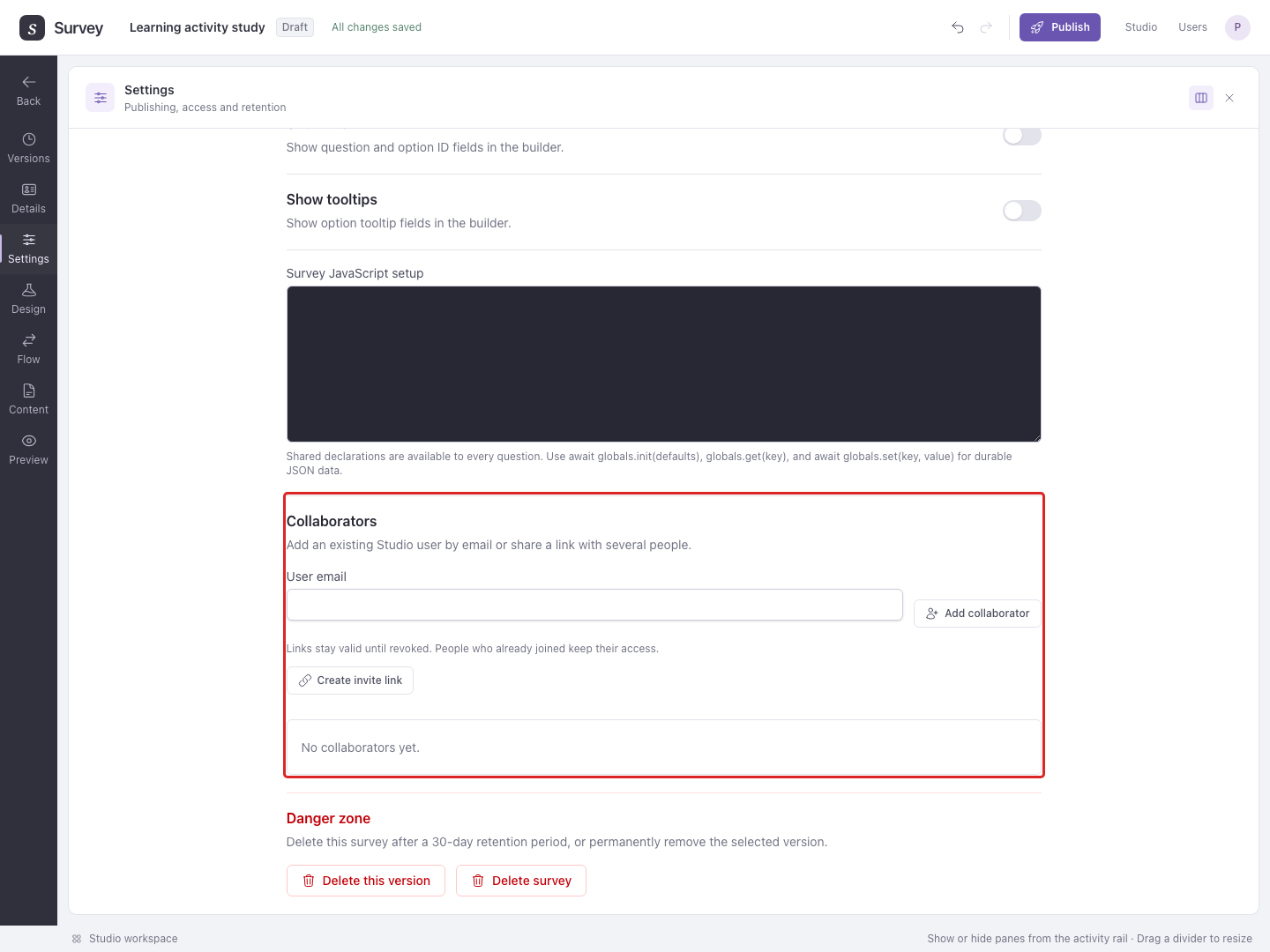
Invite links remain valid until revoked. Revoking a link does not remove people who already joined; remove those collaborators individually.
Discuss a specific item
Open the comment control beside an element or study-design item. Enter New comment, then Post comment. Use Reply to continue the discussion and Resolve when the issue is handled. Reopen brings a resolved discussion back into use.
Example: A colleague comments on a question that “often” needs a time range. Change it to “during the past seven days”, reply with the change, and resolve the comment.
Correct your changes
The Studio toolbar offers Undo my last Studio change and redo. Undo applies to your changes, rather than undoing a collaborator's work. A later change to the same content can prevent an earlier change from being undone; review the displayed message before continuing.
Keep a tab open if Studio reports unsaved changes. Reloading can lose local text that has not been saved. For substantial alternatives, create a new version so the team can test it before publication.