Test a survey in Preview
Use Preview to check questions, branching, and calculations before sharing a survey. Test answers stay separate from participant responses.
- Open your draft in Studio and select Preview.
- Enter test values in the input panels beside the survey, including URL parameters when needed.
- Answer questions and use Continue and Back to follow a participant's route.
- Select Reset test answers to start again with different answers.
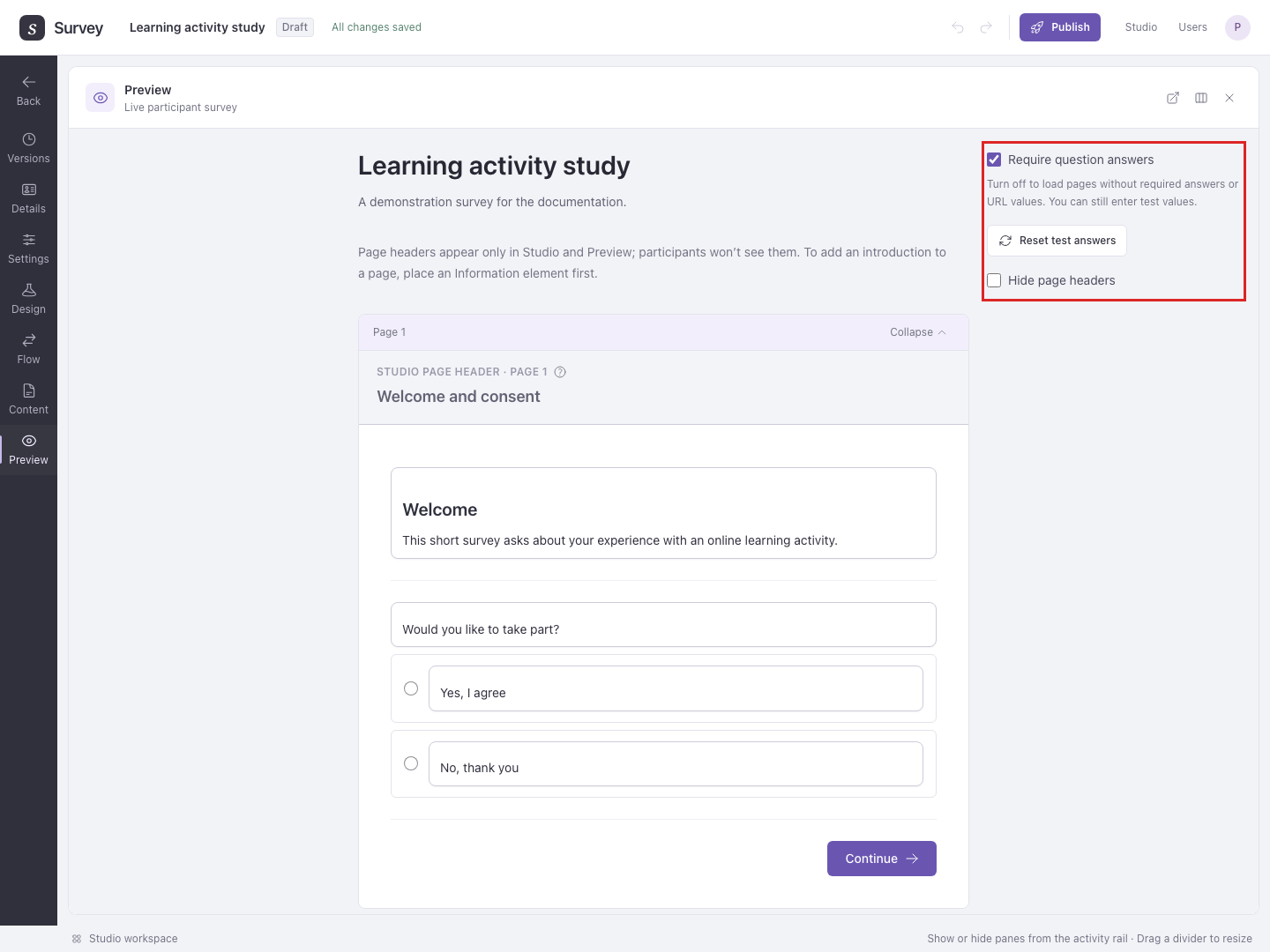
For a quick layout check, turn off Require question answers. This also lets you preview without required URL values. Turn it back on to test required inputs.
Page headers help you identify pages while editing. Participants do not see them. Select Hide page headers to check that each page has enough visible context. Add an Information element when participants need an introduction.
Hidden questions are concealed by default. Enable Show hidden questions to reveal them below Continue with red dotted outlines. Turn it off to check the participant view.
Test each study condition
For a survey with Study assignment, find Variable levels beside that step in Preview. The dropdowns select between-participant levels. Within-participant levels come from the corresponding Loop; there is no separate dropdown to replace its iterations.
Example: In the browser-extension study, select Priming → Explanation text, complete both Permission iterations, then select Reset test answers. Choose Priming → None and repeat. Reset clears answers and calculated test data; it keeps the selected levels, randomization choices, and URL inputs, so change those controls explicitly for the next test.
Test orders and subsets
Find Preview path input beside the step whose order or selection you want to test. For ordinary randomization, its dropdown lists the available selections and orders. Changing it updates the preview; Reset test answers alone keeps the current choice.
For the extension example's shuffled Permission Loop, choose the order that starts with Broad, complete both iterations, then reset and choose the order that starts with Simple. Repeat under each Priming level. An Authored order Loop has a fixed order instead of selectable alternatives.
For element order randomization, use the owning page, group, or question's dropdown to test another order or subset. Advanced JavaScript randomization offers Reshuffle instead; it runs the selection function again and can produce the same result.
Check branches
Example: A consent question sends people who choose “No” to an End step. Test “Yes”, reset the test answers, then test “No”. In the published survey, every End step saves a completed response, including the “No” route. Keep the consent question in the design so you can identify and exclude those rows using its answer in the CSV export. Preview itself does not save participant responses.
Check both routes before publishing.
Recording starts before this consent question. Review Session recording before choosing how to obtain consent.
Use Open Preview in new tab for a larger view. JavaScript in your survey also runs in Preview; any external services your code contacts may receive those test requests.